 Kitchen Wizard
Save a recipe from a social media video
Found a recipe in a short video or post? Share it to Kitchen Wizard and get it written out: ingredients with amounts, steps in order, and credit to the cook.
Option 1: Share it to Kitchen Wizard Fastest
- In the app you're watching, tap its Share button.
- Scroll the row of apps to the end and tap More (some apps call it Share to…).
- Tap Kitchen Wizard. (Don't see it? Tap More, then Edit, and add Kitchen Wizard to your favorites.)

The iPhone share sheet: tap Kitchen Wizard in the row of apps. - Kitchen Wizard reads the recipe while the wizard writes it into his book. Check it over, then tap Save.
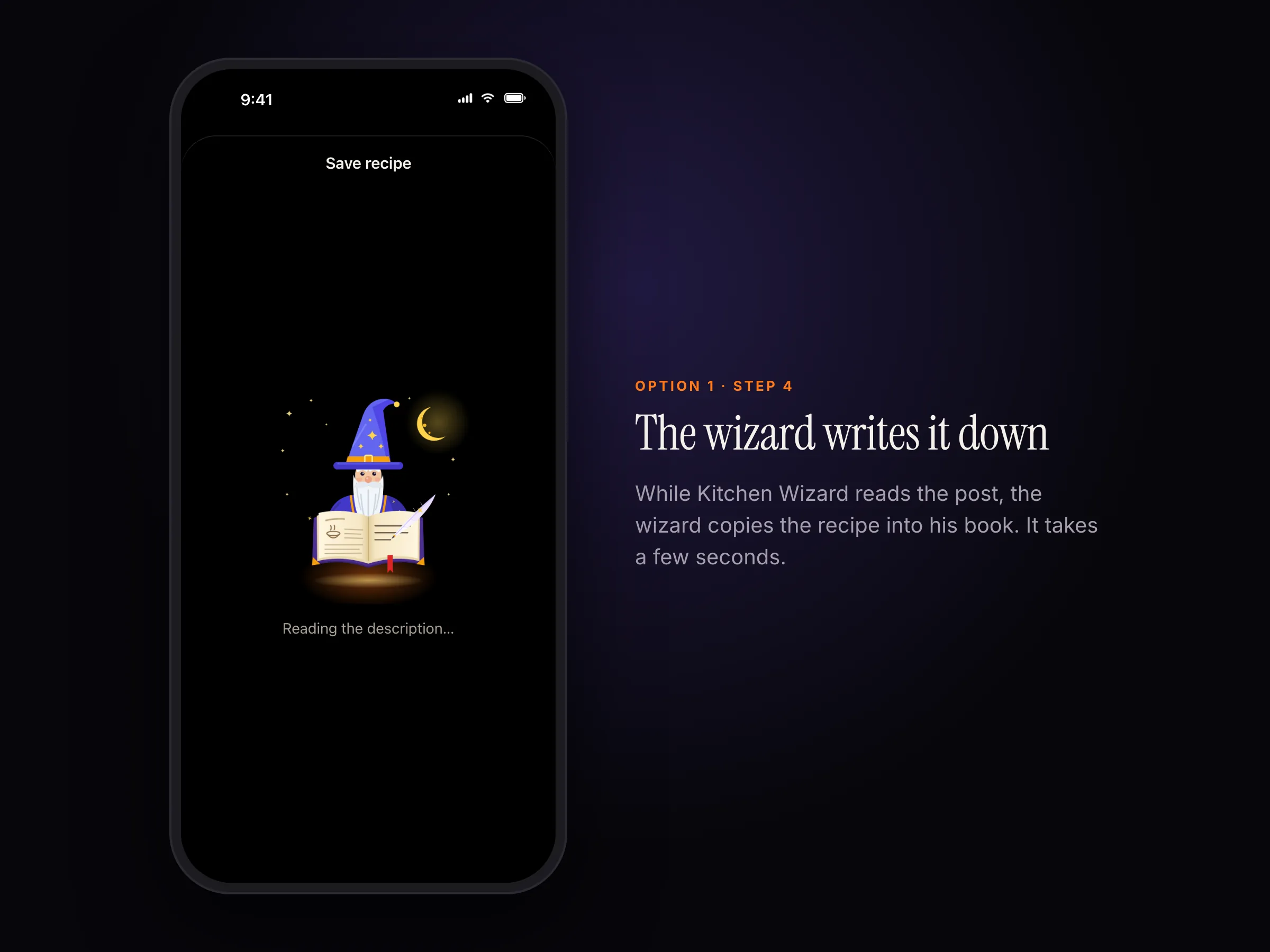
The wizard writes the recipe down while Kitchen Wizard reads the post.
Option 2: Copy the link
- In the app you're watching, tap Share, then Copy link.
- Open Kitchen Wizard, tap Scan recipe, then Paste recipe link.
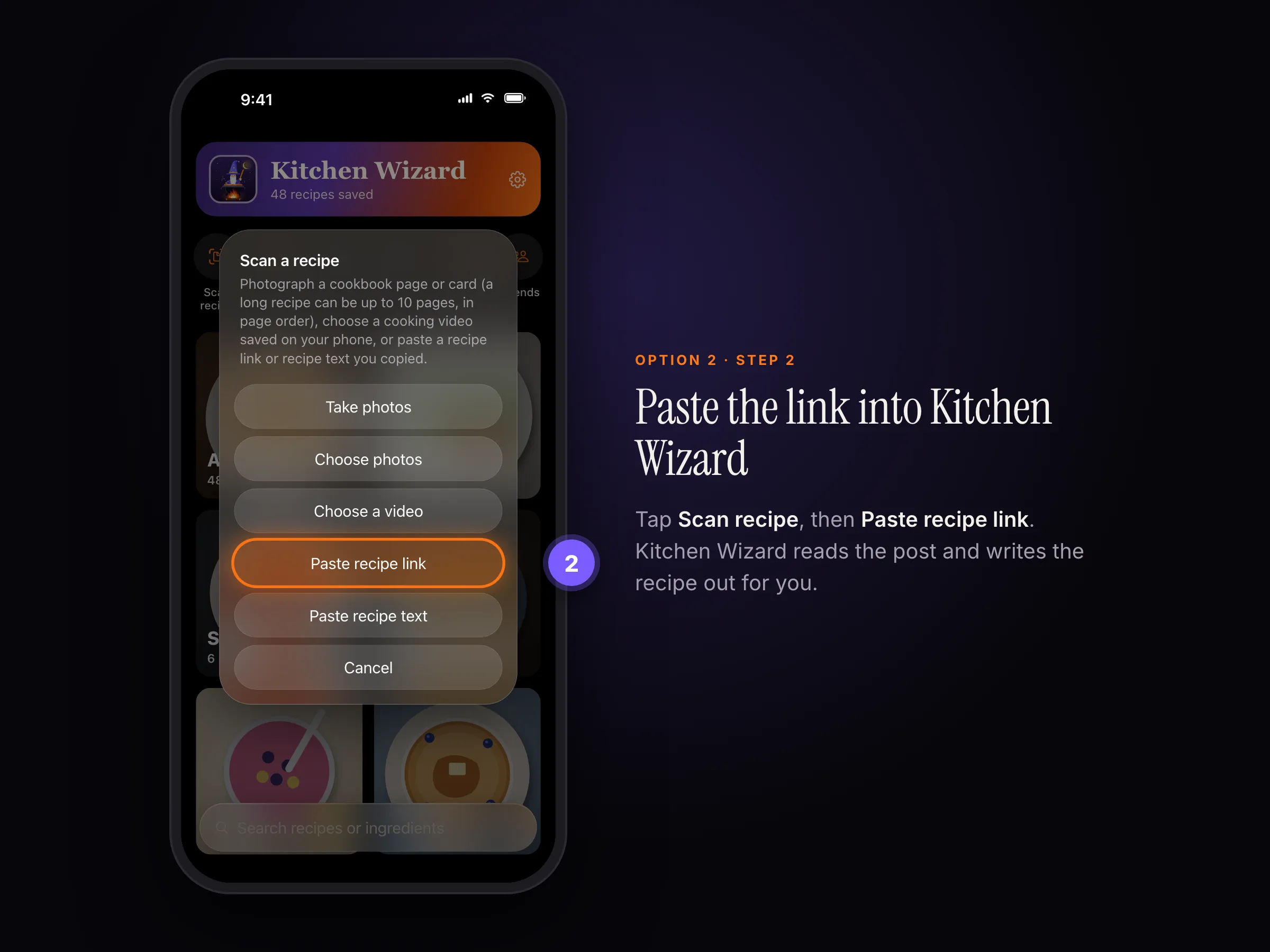
Scan recipe › Paste recipe link
What Kitchen Wizard reads
In order, stopping as soon as it has the whole recipe:
- The caption or description, when the cook wrote the recipe there.
- The cook's own recipe page, when the caption links to one.
- The video, where it can: what the cook says and the text shown on screen.
Amounts the video never says are filled in with typical ones and marked ≈, so you know they're estimates. The saved recipe shows who made it; tap it to open the original post.
No written recipe in the post? Kitchen Wizard asks how you'd like to add it: Paste the caption, Read a screenshot, or Read a screen recording. A screen recording (with sound on) catches the steps the cook only says out loud. See Save a recipe from a video.
Kitchen Wizard never signs in to your social media accounts. Reading happens on your device with Apple Intelligence (iOS 26 on an iPhone, iPad or Mac that supports it, with Apple Intelligence turned on). Very long videos (over about 15 minutes) aren't read.
Still stuck? In the app, go to Settings › Help › Report a bug, or email support@rpmenterprisesinc.com.