 Kitchen Wizard
Save a recipe from a video
When a recipe is only spoken in a video, a screen recording lets Kitchen Wizard hear it. It reads what the cook says and the text on screen, right on your iPhone.
Record the video Works with any app
- Open Control Center (swipe down from the top-right corner) and tap Screen Recording.
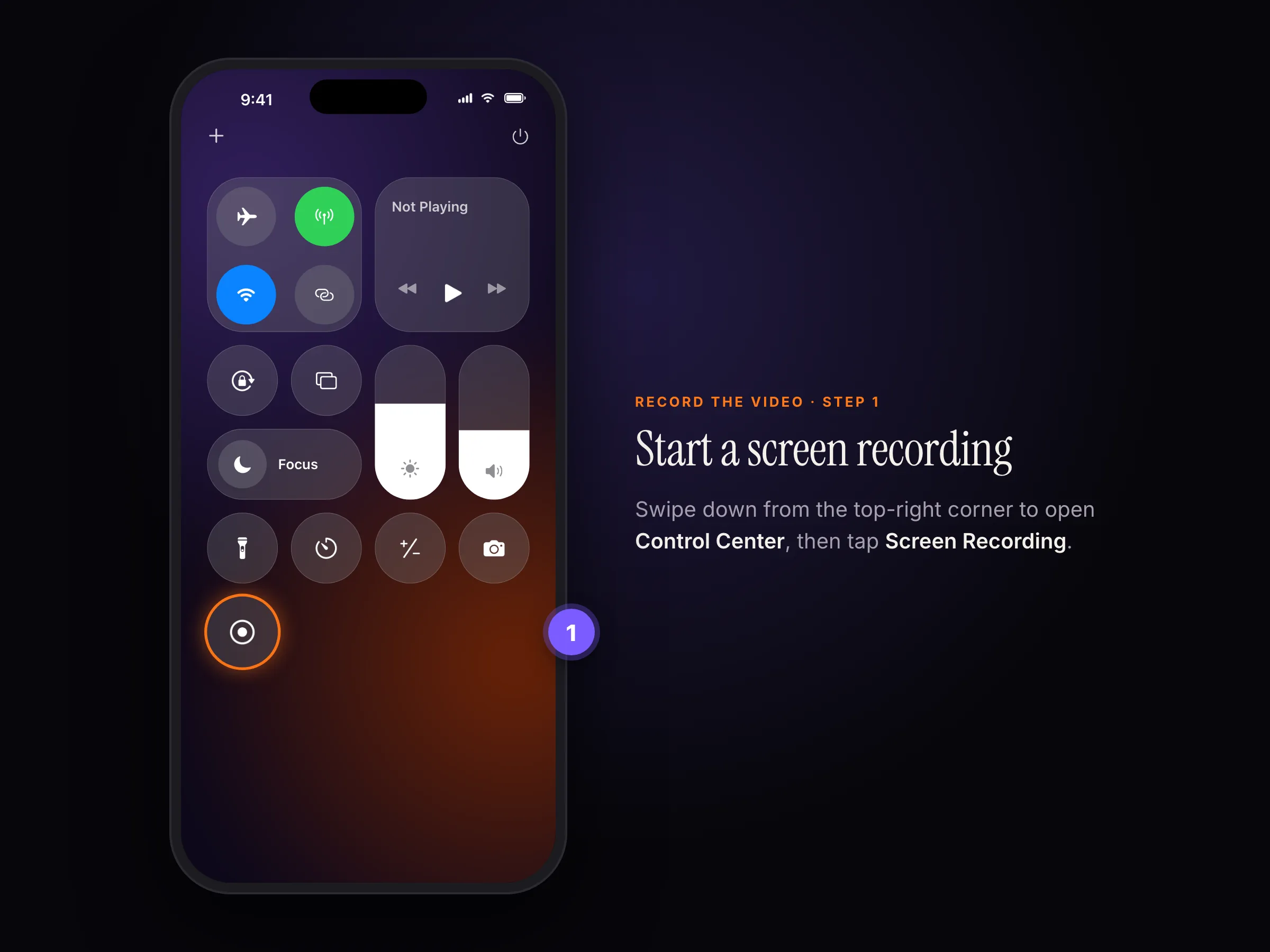
Control Center › Screen Recording - Play the video from the start, with the sound on.
- When it ends, tap the red recording button at the top of the screen to stop. The recording is saved to Photos.
✓
Don't see Screen Recording? Go to Settings › Control Center and add it.
Read it in Kitchen Wizard
- Tap Scan recipe, then Choose a video.
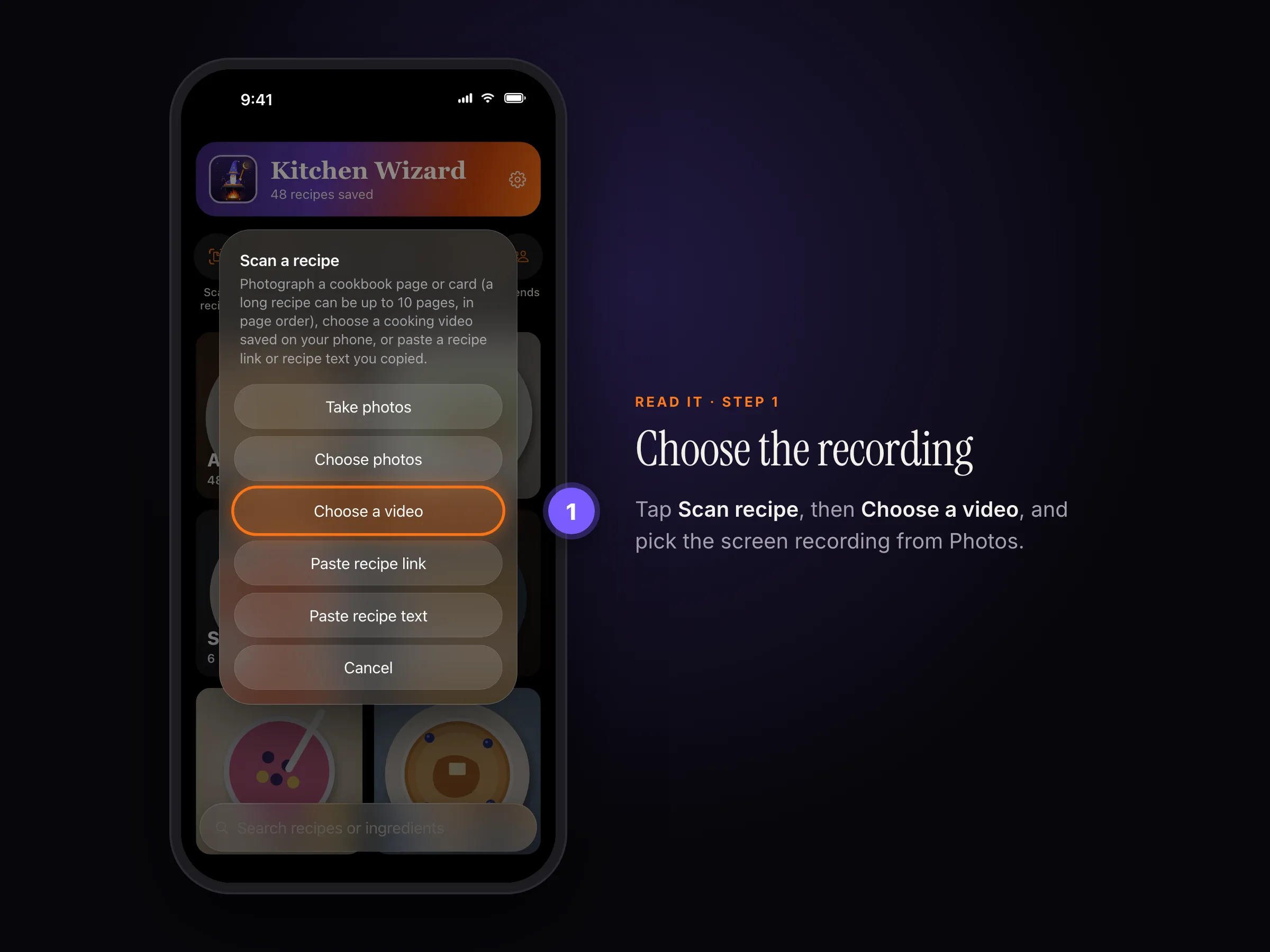
Scan recipe › Choose a video - Pick the recording. Reading takes about a minute for a short video.
- Check the recipe and tap Save. You can delete the recording from Photos afterwards.
i
Short videos read best (up to about 15 minutes); in a long video Kitchen Wizard looks at fewer moments, so it can miss things. Reading a video needs Apple Intelligence: iOS 26 on an iPhone, iPad or Mac that supports it. Amounts the cook never says are filled in with typical ones and marked ≈.
Still stuck? In the app, go to Settings › Help › Report a bug, or email support@rpmenterprisesinc.com.