 Kitchen Wizard
Scan a recipe from a cookbook or card
Take photos of a cookbook page, a recipe card or a magazine, and Kitchen Wizard types it up for you.
Scan it
- Tap Scan recipe, then Take photos (or Choose photos for pictures you already have).
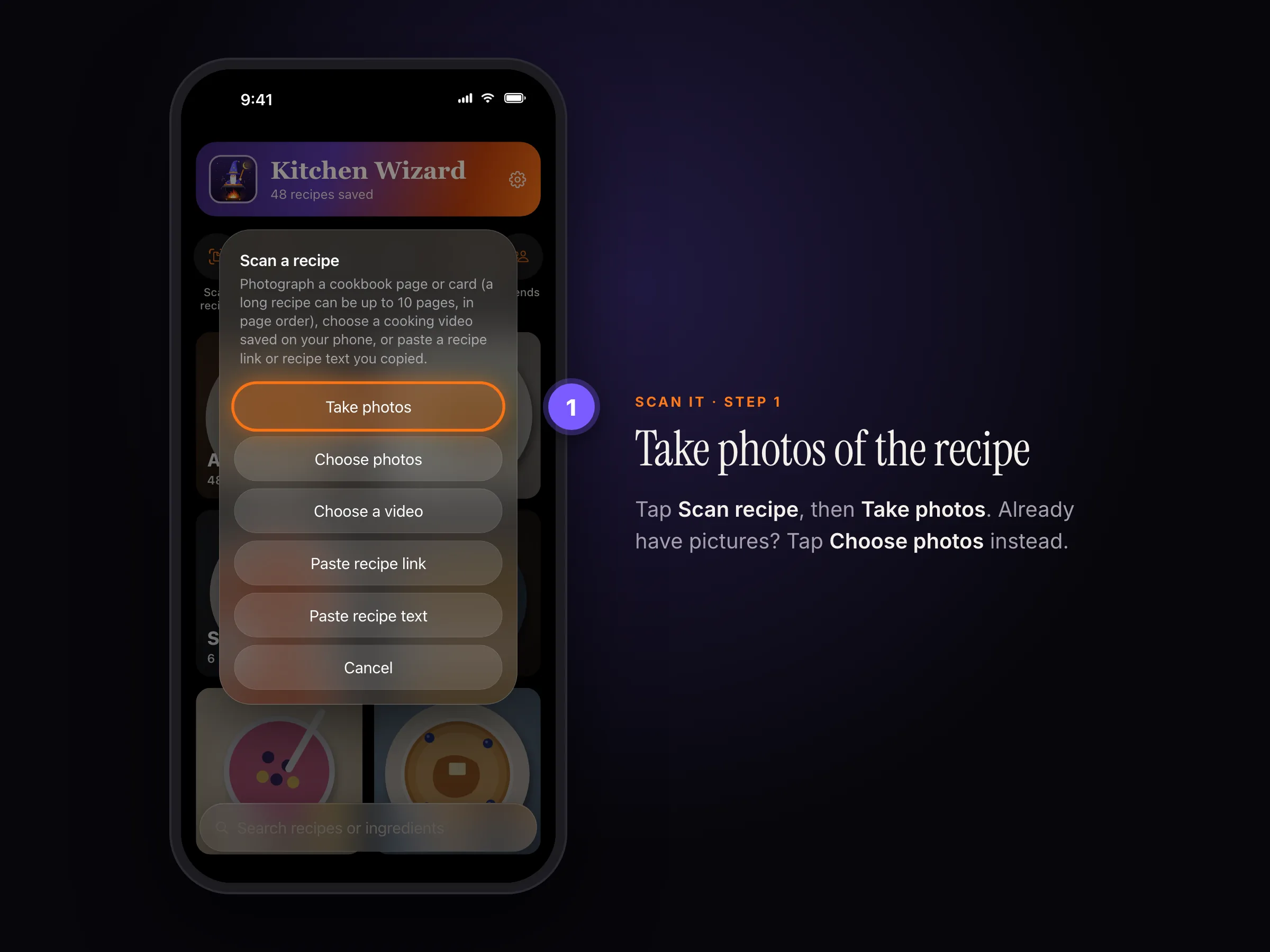
Scan recipe › Take photos - Photograph every page of the recipe, in order (up to 10 pages). Two-page and two-column recipes are fine.
- Check the result, then tap Save.
Note which cookbook it's from
- On the check screen, tap Which cookbook?
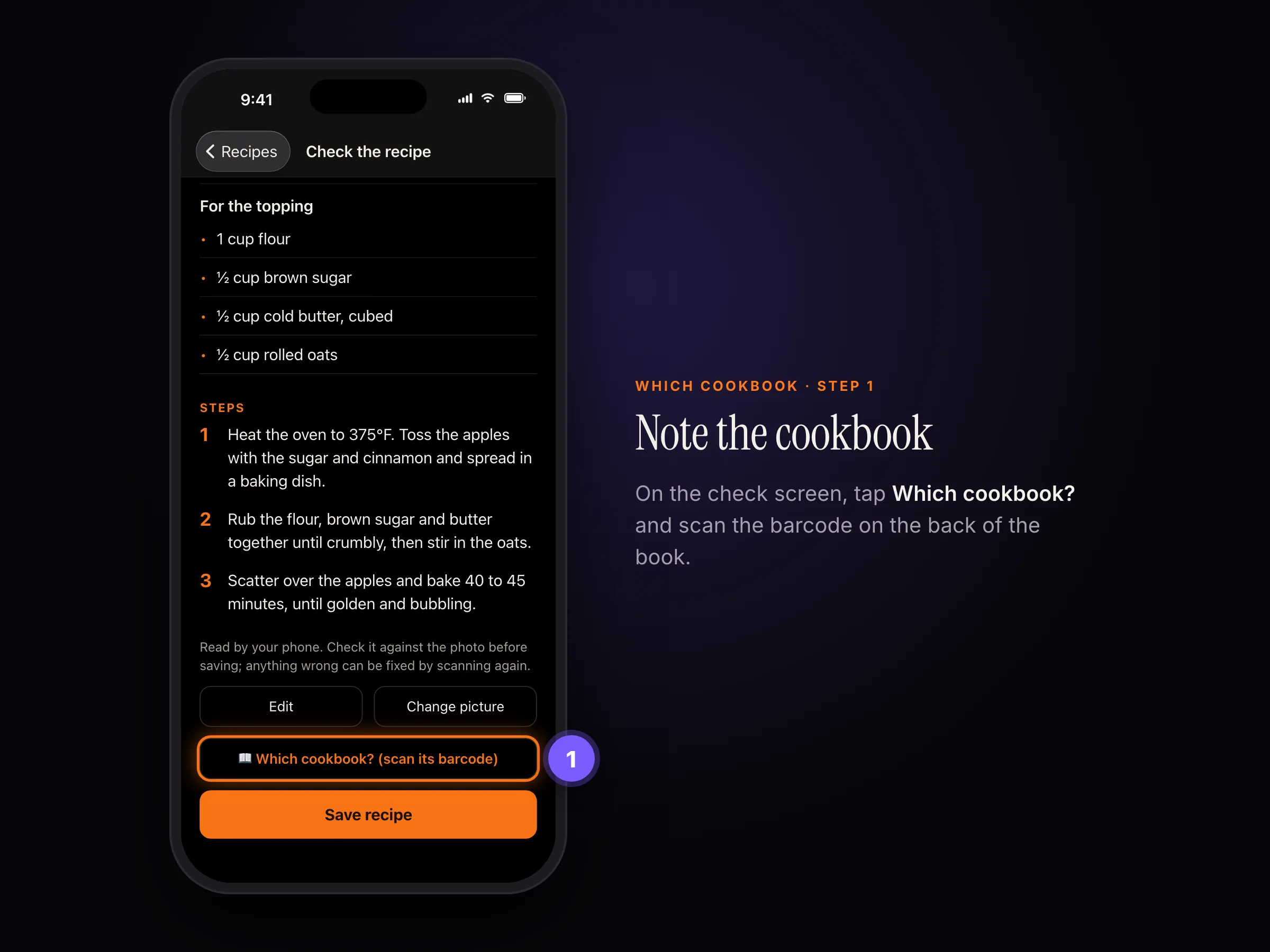
On the check screen, tap Which cookbook? - Tap Scan the cookbook's barcode and point at the barcode on the back cover. Kitchen Wizard looks up the title and author, and fills in the page number from your photo when it can.
✓
Flat pages in good light read best. Handwriting works when it's neat; old cursive is hard to read.
i
Scanning needs Apple Intelligence: iOS 26 on an iPhone, iPad or Mac that supports it, with Apple Intelligence turned on in Settings. Looking up the cookbook sends only its barcode number (ISBN) to Open Library and, if needed, Google Books.
Still stuck? In the app, go to Settings › Help › Report a bug, or email support@rpmenterprisesinc.com.